为 Amazon GameLift Streams 添加持久化游戏存档
Adding persistent game saves to Amazon GameLift Streams

使用 Amazon GameLift Streams 进行游戏串流时,其中一个挑战在于其运行的实例是临时的,因此存档文件和配置偏好等本地文件无法在会话之间持久保存。
为解决这一问题,Amazon GameLift Streams 现在支持使用专用的 AWS Identity and Access Management (IAM) 角色,该角色可以授予您的串流游戏会话访问账户中 AWS 资源的权限。在本博文中,我们将展示如何使用该角色配合一个轻量级启动脚本,将玩家串流会话中的游戏存档持久化到 Amazon Simple Storage Service (Amazon S3),而无需对游戏代码进行任何修改。
前提条件
要完成本文所述的步骤,您必须满足以下先决条件:
- 一个 AWS 账户
- 一个已上传游戏二进制文件的 Amazon GameLift Streams 应用程序
- 一个用于存储存档文件的 S3 存储桶
- 本地已安装 AWS 命令行界面(AWS CLI)
- 在 Amazon GameLift Streams 中配置的流组
解决方案概述
图 1 展示了本文所介绍的解决方案概览。
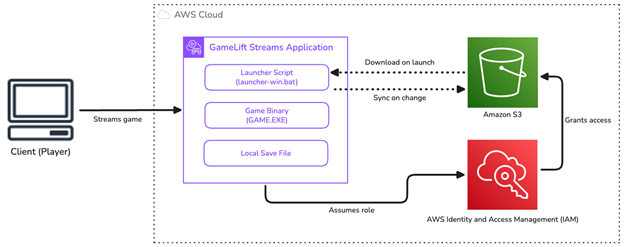
图 1:解决方案概述。
配置 IAM 角色
首先,创建一个 IAM 角色。
- 前往 IAM 的 AWS 管理控制台,并在导航窗格中选择 角色。
- 选择 创建角色。
- 将 受信任实体类型 选择为 自定义信任策略。
- 将以下内容输入为 自定义信任策略,并将
[CUSTOMER_ACCOUNT_ID]替换为您的账户 ID。
{
  "Version": "2012-10-17",
  "Statement": [
    {
      "Effect": "Allow",
      "Principal": {
        "Service": "gameliftstreams.amazonaws.com"
      },
      "Action": "sts:AssumeRole",
      "Condition": {
        "StringEquals": {
          "aws:SourceAccount": "[CUSTOMER_ACCOUNT_ID]"
        },
        "ArnLike": {
          "aws:SourceArn": "arn:aws:gameliftstreams:*:[CUSTOMER_ACCOUNT_ID]:streamsession/*"
        }
      }
    }
  ]
}
5. 选择 下一步。
6. 在 添加权限 页面上,选择 创建内联策略。
7. 为该角色添加必要的权限。在本示例中,您将向 Amazon S3 读取和写入文件,因此您需要创建一个自定义策略,允许该角色执行 s3:PutObject、s3:GetObject 和 s3:DeleteObject。
以下是一个示例策略语句,允许 Amazon GameLift Streams 与 Amazon S3 进行交互。将 [YOUR_BUCKET_NAME] 替换为您的实际存储桶名称。
{
    "Version": "2012-10-17",
    "Statement": [
        {
            "Effect": "Allow",
            "Action": [
                "s3:PutObject",
                "s3:GetObject",
                "s3:DeleteObject"
            ],
            "Resource": "arn:aws:s3:::[YOUR_BUCKET_NAME]"
        }
    ]
}
- 选择 下一步。
- 输入一个角色名称。角色名称必须以
GameLiftStreams-开头。 - (可选)输入角色的描述。
- 检查您的输入,然后选择创建角色。
创建启动脚本
接下来,配置一个启动脚本,用于替代游戏的二进制文件作为应用程序源。该脚本将在 Amazon GameLift Streams 会话启动时从 Amazon S3 下载已有的存档文件。它还会监控本地存档文件的变化,并在文件更改时将更新同步回 S3。本示例以 Windows 为重点;对于 Proton 或 Linux(Ubuntu),请根据需要修改脚本。
注意:如果您创建的 IAM 角色授予了 Amazon GameLift Streams 相应权限,您的启动脚本可以与任何 AWS 资源进行交互。
您的启动脚本需要两个环境变量。要将这些必需变量传递给启动脚本,您可以在后端服务中使用 StartStreamSession 的 AdditionalEnvironmentVariables 属性。
S3_SAVE_PATHLOCAL_SAVE_FILE_PATH
第一个是存档文件的完整 Amazon S3 URI,该 URI 必须是唯一的。调用 StartStreamSession 的后端服务需要从经过身份验证的会话中识别玩家(例如,使用其登录会话或其他平台特定的玩家 ID),并动态构建每个玩家的 S3 URI。其形式可以类似于 s3://your-bucket/saves/{player-id}/save.dat。
启动脚本期望的第二个环境变量是 S3 文件在 Amazon GameLift Streams 实例上将存储的本地文件路径。
以下是完整的启动脚本:
@echo off
setlocal

REM Downloads save from S3, watches for changes, syncs back, and runs the game

set SCRIPT_DIR=%~dp0
set PACKAGE_ROOT=%SCRIPT_DIR%

if not defined LOCAL_SAVE_FILE_PATH (
    echo WARNING: LOCAL_SAVE_FILE_PATH not set, skipping file watcher
    goto :start_app
)

if not defined S3_SAVE_PATH (
    echo WARNING: S3_SAVE_PATH not set, skipping file watcher
    goto :start_app
)

set LOG_FILE=%SCRIPT_DIR%file_watcher.log

set REGION_ARG=
if defined AWS_REGION set REGION_ARG=-Region "%AWS_REGION%"

REM Download existing save from S3
powershell -NoProfile -ExecutionPolicy Bypass -File "%SCRIPT_DIR%download-save-file.ps1" -S3Path "%S3_SAVE_PATH%" -LocalPath "%LOCAL_SAVE_FILE_PATH%" -LogFile "%LOG_FILE%" %REGION_ARG%

REM Start file watcher as background process
start "" /b powershell -NoProfile -WindowStyle Hidden -ExecutionPolicy Bypass -File "%SCRIPT_DIR%watch-save-file.ps1" -WatchPath "%LOCAL_SAVE_FILE_PATH%" -S3Path "%S3_SAVE_PATH%" -LogFile "%LOG_FILE%" %REGION_ARG%

:start_app

REM Add your game executable below:
GAME.EXE -f
该 download-save-file.ps1 脚本会下载该文件(如果存在),并将其保存到本地路径。
param(
    [Parameter(Mandatory=$true)][string]$S3Path,
    [Parameter(Mandatory=$true)][string]$LocalPath,
    [Parameter(Mandatory=$true)][string]$LogFile,
    [Parameter(Mandatory=$false)][string]$Region
)

$ts = Get-Date -Format 'yyyy-MM-dd HH:mm:ss'
Add-Content -Path $LogFile -Value "$ts - Checking for existing save at: $S3Path"

$regionArgs = @()
if (-not [string]::IsNullOrWhiteSpace($Region)) {
    $regionArgs = @('--region', $Region)
}

# Ensure local directory exists
$localDir = Split-Path $LocalPath -Parent
if (-not (Test-Path $localDir)) {
    New-Item -ItemType Directory -Path $localDir -Force | Out-Null
}

try {
    $result = & aws s3 cp $S3Path $LocalPath @regionArgs 2>&1
    if ($LASTEXITCODE -eq 0) {
        Add-Content -Path $LogFile -Value "$(Get-Date -Format 'yyyy-MM-dd HH:mm:ss') - Downloaded save from S3"
    } else {
        Add-Content -Path $LogFile -Value "$(Get-Date -Format 'yyyy-MM-dd HH:mm:ss') - No save found in S3: $result"
    }
} catch {
    Add-Content -Path $LogFile -Value "$(Get-Date -Format 'yyyy-MM-dd HH:mm:ss') - Exception: $_"
}Thewatch-save-file.ps1file creates a file watcher to sync changes while the game is running. Note that this can result in a large number ofPUTrequests to Amazon S3. If possible, you might want to take a different approach (for example, saving on a time-based schedule) in production to save costs.param( [Parameter(Mandatory=$true)][string]$WatchPath, [Parameter(Mandatory=$true)][string]$S3Path, [Parameter(Mandatory=$true)][string]$LogFile, [Parameter(Mandatory=$false)][string]$Region ) $timestamp = Get-Date -Format 'yyyy-MM-dd HH:mm:ss' Add-Content -Path $LogFile -Value "$timestamp - Watcher starting for: $WatchPath" $regionArgs = @() if (-not [string]::IsNullOrWhiteSpace($Region)) { $regionArgs = @('--region', $Region) } if ([string]::IsNullOrWhiteSpace($WatchPath)) { Add-Content -Path $LogFile -Value "$timestamp - ERROR: WatchPath is empty" exit 1 } $folder = Split-Path $WatchPath -Parent $fileName = Split-Path $WatchPath -Leaf if (-not (Test-Path $folder)) { New-Item -ItemType Directory -Path $folder -Force | Out-Null } try { $watcher = New-Object System.IO.FileSystemWatcher $watcher.Path = $folder $watcher.Filter = $fileName $watcher.NotifyFilter = [System.IO.NotifyFilters]::LastWrite -bor [System.IO.NotifyFilters]::Size -bor [System.IO.NotifyFilters]::FileName $watcher.EnableRaisingEvents = $true while ($true) { $result = $watcher.WaitForChanged([System.IO.WatcherChangeTypes]::All, 1000) if (-not $result.TimedOut) { $ts = Get-Date -Format 'yyyy-MM-dd HH:mm:ss' Add-Content -Path $LogFile -Value "$ts - [$($result.ChangeType)] $folder\$($result.Name)" # Sync to S3 try { $s3Result = & aws s3 cp $WatchPath $S3Path @regionArgs 2>&1 if ($LASTEXITCODE -eq 0) { Add-Content -Path $LogFile -Value "$(Get-Date -Format 'yyyy-MM-dd HH:mm:ss') - Synced to S3" } else { Add-Content -Path $LogFile -Value "$(Get-Date -Format 'yyyy-MM-dd HH:mm:ss') - Sync failed: $s3Result" } } catch { Add-Content -Path $LogFile -Value "$(Get-Date -Format 'yyyy-MM-dd HH:mm:ss') - Sync exception: $_" } } } } catch { Add-Content -Path $LogFile -Value "$(Get-Date -Format 'yyyy-MM-dd HH:mm:ss') - EXCEPTION: $_" }Starting a game session
To test your solution, you need to create a stream session and test that the file was retrieved from and persisted back to Amazon S3.
- Create a new Amazon GameLift Streams stream group.
- Create a Amazon GameLift Streams application using the
launcher-win.batfile as the Executable launch path.- After your application is created, associate the newly created stream group.
- Choose Test Stream in the console navigation pane using the newly created stream group and application.
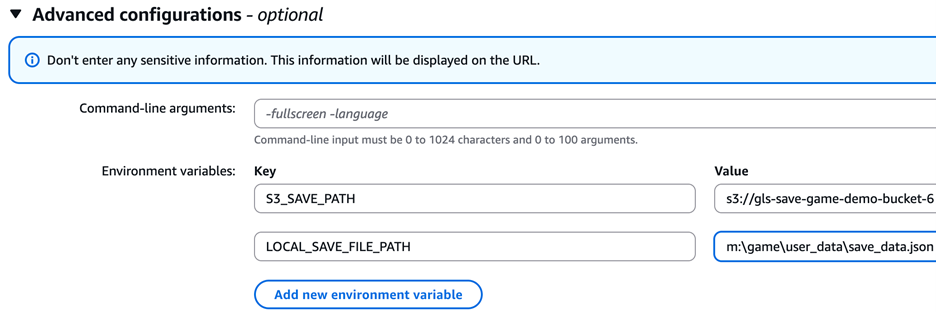
- Add the
S3_SAVE_PATHandLOCAL_SAVE_PATHenvironment variables and populate them according to the bucket you have created in your account for this test.
Figure 2: Add environment variables.
- Choose the IAM role you created in the preceding Configure the IAM role section.
- Choose Test stream and verify that the save files are being persisted to S3.
- Terminate the session and start a new session to test that the persisted save file is properly loaded.
If you need to troubleshoot the launcher script, you can use
CreateStreamSessionAdminShellto connect to the live runtime environment of your stream session.Start a stream session using the API
When you’re ready to integrate this into your game streaming platform you can update your backend service to include the
AdditionalEnvironmentVariablesandRoleArnto yourStartStreamSessionAPI call.import { GameLiftStreamsClient, StartStreamSessionCommand } from "@aws-sdk/client-gameliftstreams"; const client = new GameLiftStreamsClient(); const command = new StartStreamSessionCommand({ Identifier: "sg-1234567890abcdef0", ApplicationIdentifier: "a-1234567890abcdef0", Protocol: "WebRTC", SignalRequest: "YOUR_SIGNAL_REQUEST_BASE64", Locations: [{ Location: "YOUR_REGION" }], AdditionalEnvironmentVariables: { LOCAL_SAVE_FILE_PATH: "M:\\game\\save.txt", S3_SAVE_PATH: "s3://your-bucket/saves/player-123/save.txt", }, RoleArn: "arn:aws:iam::111122223333:role/GameLiftStreams-S3AccessRole", }); try { const response = await client.send(command); console.log("Stream session started:", response.Arn); } catch (error) { if (error.name === "AccessDeniedException") { console.error("Access denied. Verify your IAM role permissions:", error.message); } else if (error.name === "ResourceNotFoundException") { console.error("Resource not found. Check your stream group or application identifier:", error.message); } else { console.error("Failed to start stream session:", error.message); } }Clean up
To avoid ongoing charges, clean up the resources you created:
- Delete the stream group in the Amazon GameLift Streams console.
- Delete the Amazon GameLift Streams application.
- Remove the save files from your S3 bucket or delete the bucket if it was created for this example.
- Delete the IAM role (
GameLiftStreams-S3AccessRole) and its associated policy from the IAM console.Conclusion
In this post, you learned how to add persistent game saves to Amazon GameLift Streams using a dedicated IAM role and a lightweight launcher script with no game code changes required. Passing an IAM role to your stream instance also unlocks automation for player configurations and save data. Remember to always apply the least-privilege principle to your IAM roles and observe the IAM security best practices.
To learn more, visit the Amazon GameLift Streams documentation. If you have questions or feedback, leave a comment below or reach out through the AWS Game Tech forums.
来源:AWS for Games · 游戏技术与运营 · aws.amazon.com